Getting started with the Logistra integration
How to connect Telaris to Cargonizer and set up what you need to use the freight integration. The setup is done by an administrator in cooperation with Telaris
TABLE OF CONTENTS
- Prerequisites
- Connect to Cargonizer
- Printers
- Tracking links
- Shipments from picking lists
- Automatic EDI transfer
Prerequisites
Before you begin, you must have an account with Logistra (Cargonizer) with at least one transport agreement, and you must have an API key (Client Token) and client number (Client Number) from Cargonizer. Note that the client number is called "ID" in Cargonizer.
Connect to Cargonizer
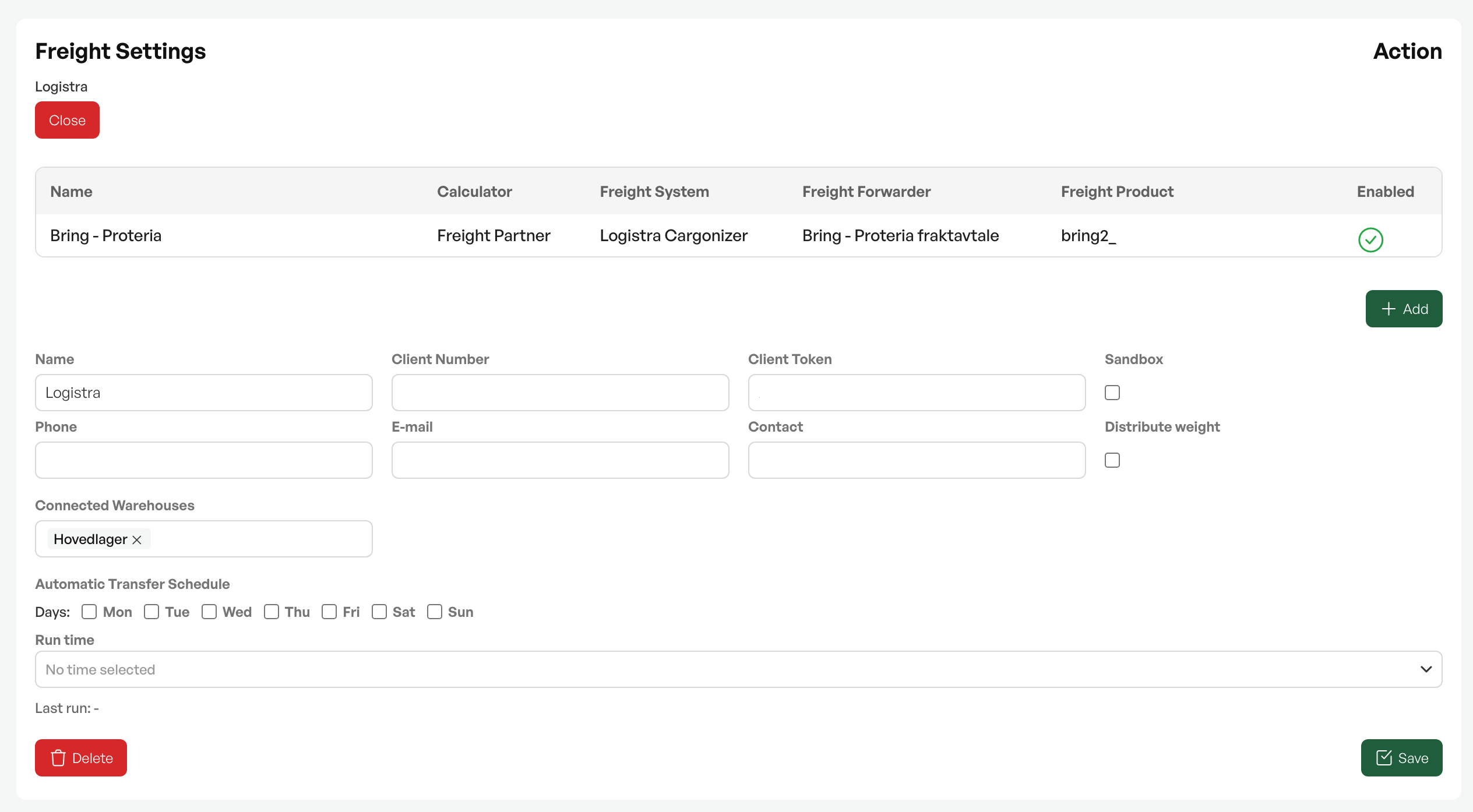
Go to Settings and then System settings, and open the Freight settings tab. Create a new Cargonizer setting and fill in:
1. Name, an optional display name, for example warehouse or company name.
2. Client Number and Client Token from Cargonizer.
3. Sandbox, which is enabled only for testing. Leave it off in production.
4. Phone, Email and Contact person, which become the default sender information on shipments.
5. Distribute weight, if the total weight should be distributed automatically across all packages.
6. Linked warehouses, which control which warehouses the connection applies to.
Save the setting. If you have several warehouses with different Cargonizer accounts or transport agreements, create one connection per account and link the relevant warehouses to each.
NB: Requires activation by Telaris. Contact Telaris support
Printers
If you have label printers connected to Cargonizer, the available printers appear in the freight settings. Choose a default printer per freight product, and the label is sent automatically to the correct printer when a shipment is created.
Label printers from Logistra are called DirectPrint, and require setup
Tracking links
Tracking links can be shown in two places, and both require setup. In PDF documents (invoice, proposal, order confirmation) you enable the setting to show freight information for the relevant document type. In email, you insert the shortcode %TRACKINGURL% in the email template, and it is replaced with the tracking links when the email is sent.
Shipments from picking lists
To be able to create shipments from picking lists, Telaris must activate the correct mode in the settings for picking lists:
Single order when the picking list covers one order, or multi-order when it covers several. Without this, no freight button appears on the picking list.
Automatic EDI transfer
Shipments in status Sent can be transferred automatically to the carrier, so no one needs to click Send EDI manually.
Requires an agreement and setup with Telaris to activate the solution.
NOTE: When automatic EDI is enabled, everything in status Sent is picked up on the next run. Therefore, do not export a shipment (New to Sent) until it is actually ready for pickup.
Guidance: Freight types are set up in a separate article, see "Setting up freight types".

Was this article helpful?
That’s Great!
Thank you for your feedback
Sorry! We couldn't be helpful
Thank you for your feedback
Feedback sent
We appreciate your effort and will try to fix the article