How to create a new user in Telaris?
NOTE: A user must be activated before it can be used. Activating a user is subject to license and will lead to changes in the agreement and invoice.

Guidance for activation and deactivation is linked at the bottom of this article
TABLE OF CONTENTS
Steps
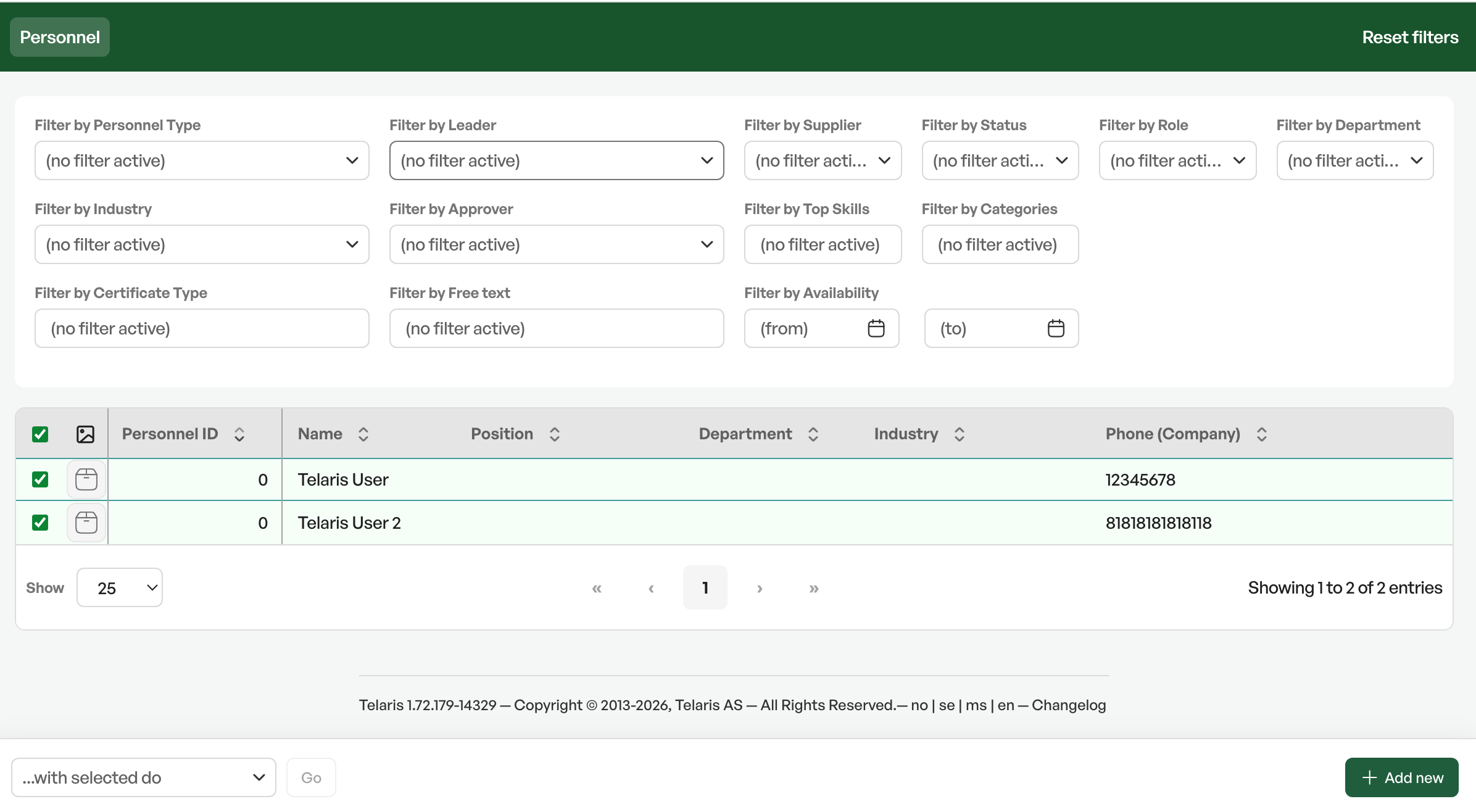
To create a new user, navigate from the side menu > Personnel register > Search
At the bottom of the list on the right is the 'Add new' button
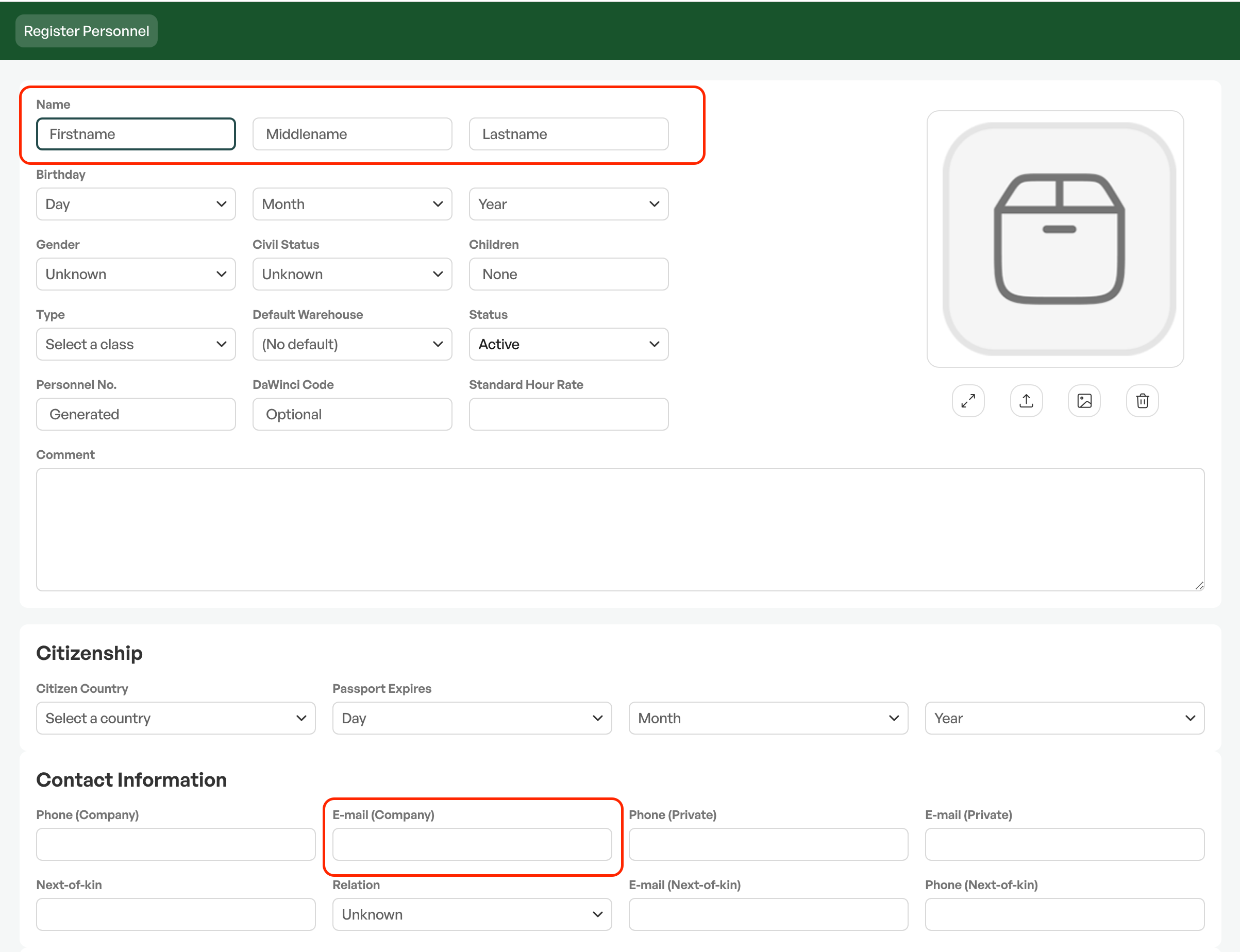
Fill in minimum name and email
Click save once you have filled in the desired information
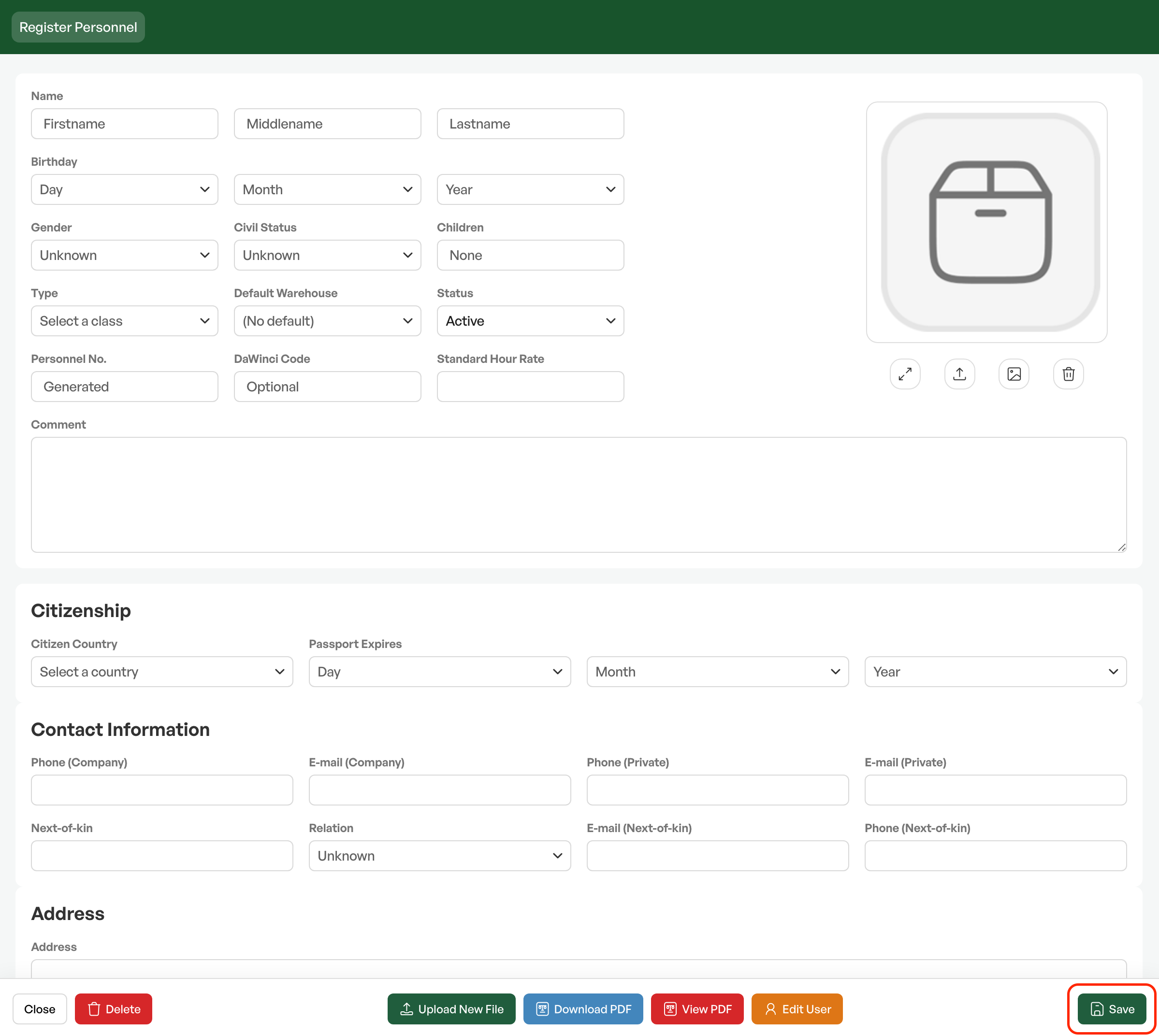
This is the minimum requirement to create a user; you can fill in more fields as needed.
Once the person is created, click edit user to set the correct user type according to which rights the person should have in the system,

User settings and user type
User type
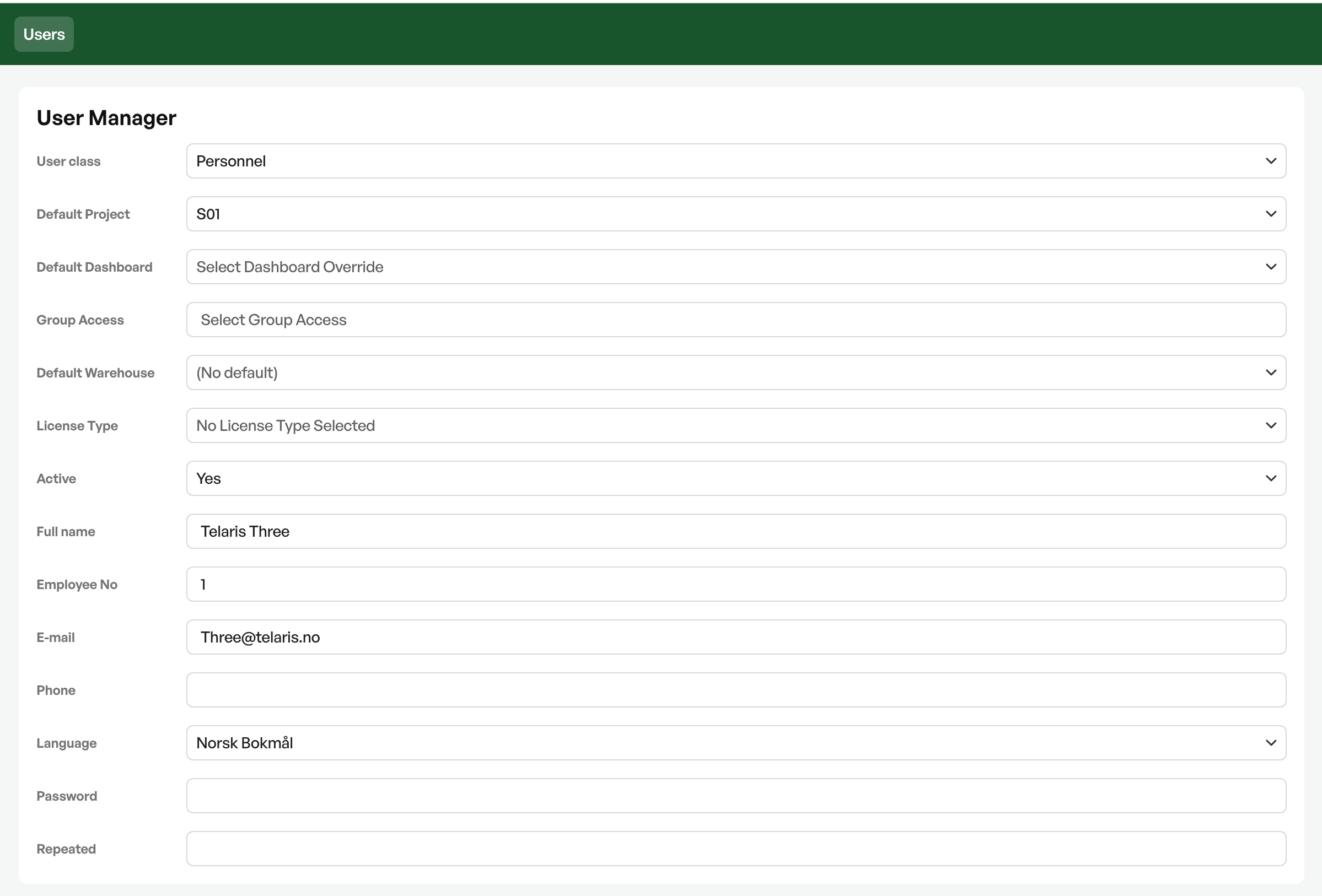
Click the relevant user in the list and choose a user type that matches the user's role compared with other users.
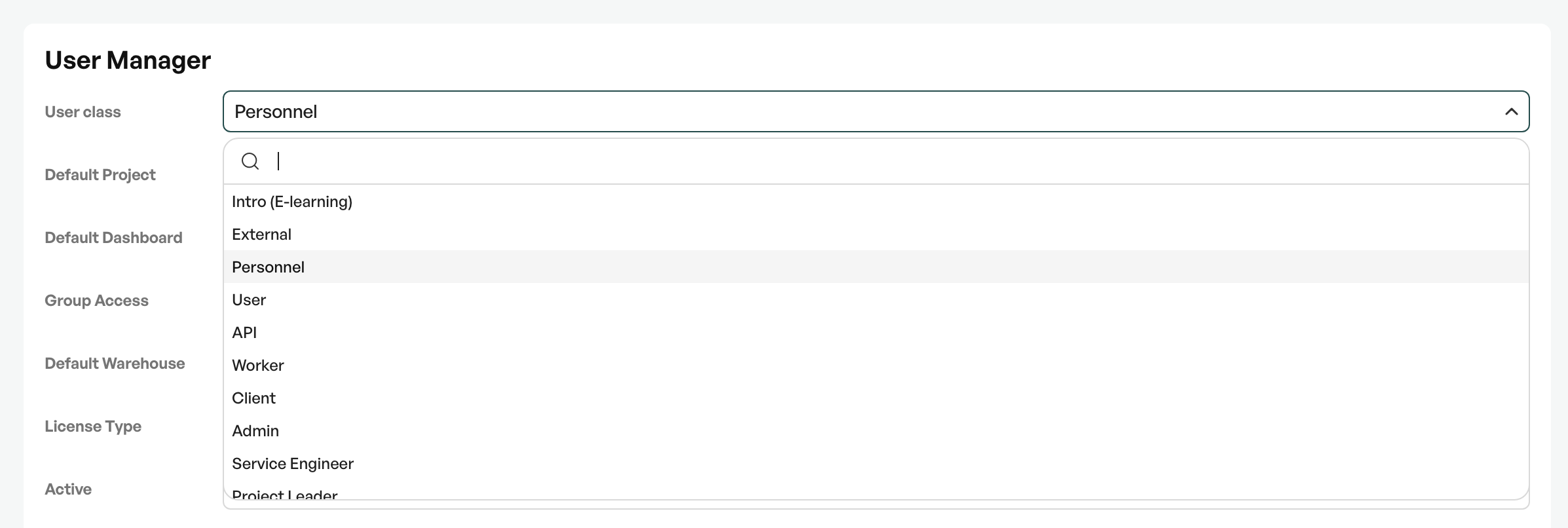
Explanation of the most relevant user types
| User type | Billing class | Rights characteristics |
|---|---|---|
| Sysadmin | System user | Full access. The only user type that can manage company structure, perform extended administration, create reports and delete products. |
| Admin | System user | Broad access, but not company structure, cannot create new reports, no extended administration and cannot delete products. Can manage project structure and checklists, and approve hours. |
| Project Leader | System user | Like Admin for orders, products and objects. Approves and reports hours only when the user is set as leader. Can manage project structure and checklists. |
| Service Engineer | System user | Full operational access to orders, products and objects. Cannot approve hours, manage structure or create reports. |
| Worker | Field | Most limited. Can view, add orders, write hours and fill in checklists. Cannot delete or edit products, approve hours or create reports. Order confirmation and invoicing are controlled by settings. |
Group access
Select Group access so the user is placed in the correct access group compared with existing users and access groups
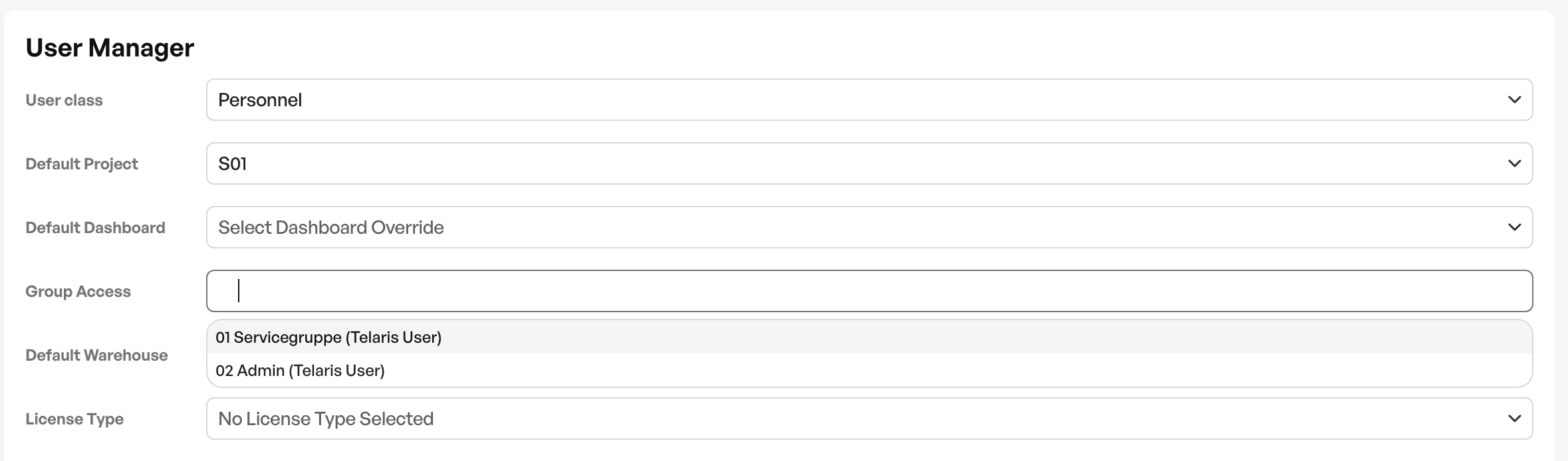
Guidance: Groups for access and teams
Password
On users, the Sysadmin can set passwords for login for their users.
For new users, the recommendation is that the admin sets a password, then the new user logs in, changes the password and enables two-factor login (TOTP).

Guidance: How to activate or deactivate a user

Was this article helpful?
That’s Great!
Thank you for your feedback
Sorry! We couldn't be helpful
Thank you for your feedback
Feedback sent
We appreciate your effort and will try to fix the article