Change password
If the situation arises where you need to change your own password after logging in to Telaris, this is done by going to your own User profile and setting a new password.
For security reasons, it is recommended to change your password regularly.
NOTE: If you forget your password, contact your system administrator for recovery.
How to change your password
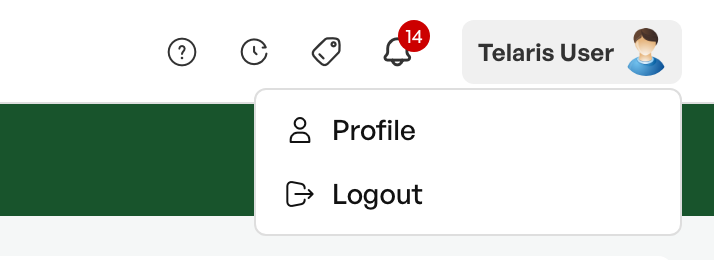
Click 'User profile' in the top right corner
Scroll down to 'Change password'
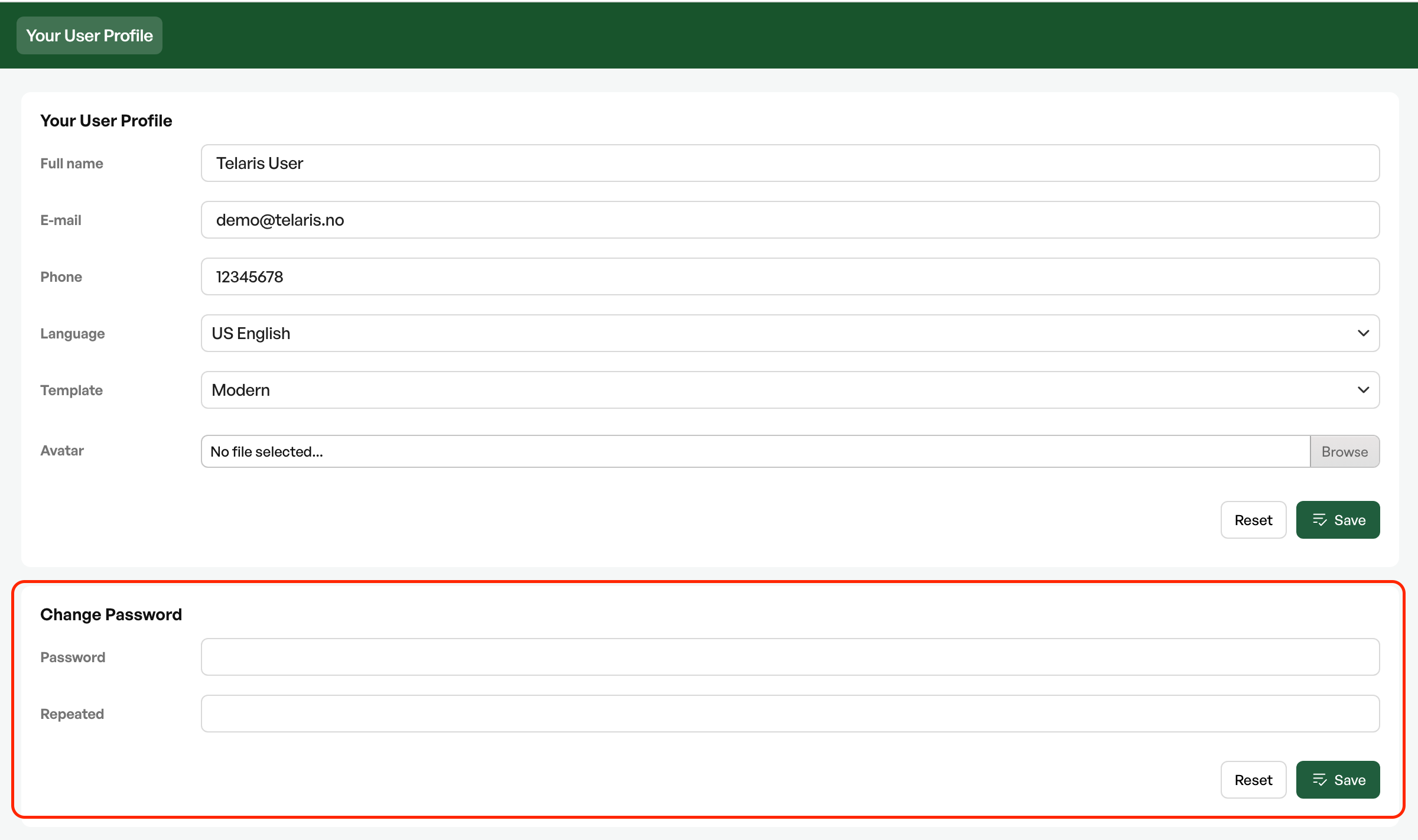
Enter a new password, repeat the password, and click 'Save' on the left.
After you click 'Save', the new password is set and is not visible in the password fields.
No one else can read your password in Telaris.
If you have problems logging in, contact your administrator. Telaris support will never reset a password when contacted by parties other than verified contacts.

Was this article helpful?
That’s Great!
Thank you for your feedback
Sorry! We couldn't be helpful
Thank you for your feedback
Feedback sent
We appreciate your effort and will try to fix the article