Action points after a completed stock count
Once you have completed the stock count, it is important that you do everything correctly in the system, so that the complete count result appears correctly in Telaris.
TABLE OF CONTENTS
- Action points after a completed stock count
- Control report
- Best estimate of stock value on a given date
- Corrections of item value after counting
Control report
As a general rule, we always recommend that the person responsible for the count takes out the control report both during and after the stock count to look at the largest registered discrepancies. This is to reveal whether there are discrepancies that are illogical and need a further check count.
It can be especially wise to check items you have counted several times at a location. Make sure the total quantity at the location is correct.
Best estimate of stock cost on a given date
To retrieve the total stock cost registered in the system, we recommend that you take out the following reports on thedesired date
- Physical stock quantity
- Picked, not invoiced
- Invoiced, not picked
Best estimate of total stock cost: Physical stock quantity (+) picked, not invoiced (-) invoiced, not picked
The accuracy of these reports may vary based on internal routines regarding the registration and updating of the goods flow in the system.
For example, invoiced, not picked must be assessed separately against the actual physical stock registered in the system on the given date. These can be pre-invoiced goods or goods inbound, and are handled separately.
There is also a combined report in the system calledconsolidated stock status (cost basis).This is based on the three reports mentioned above and gives identical results.
Corrections of item cost after counting
When you want to make a specific correction of item cost, we recommend doing this after the stock count is finished. This is to ensure traceability and documentation. This may, for example, be relevant in the following situations:
- Correcting quantity up from zero, see the section "correction"in the user guide;Preparations before a stock count in Telaris
- Correction requires extra traceability
There are three procedures in Telaris:
- Manual correction via the product card
- Sales order
- Purchase order
Manual correction via the product card
This method is done per product and under the "Warehouse" tab in the product card. Under "Actions" on the far right, you then click "Edit". In the next screen you can change the warehouse regarding quantity.
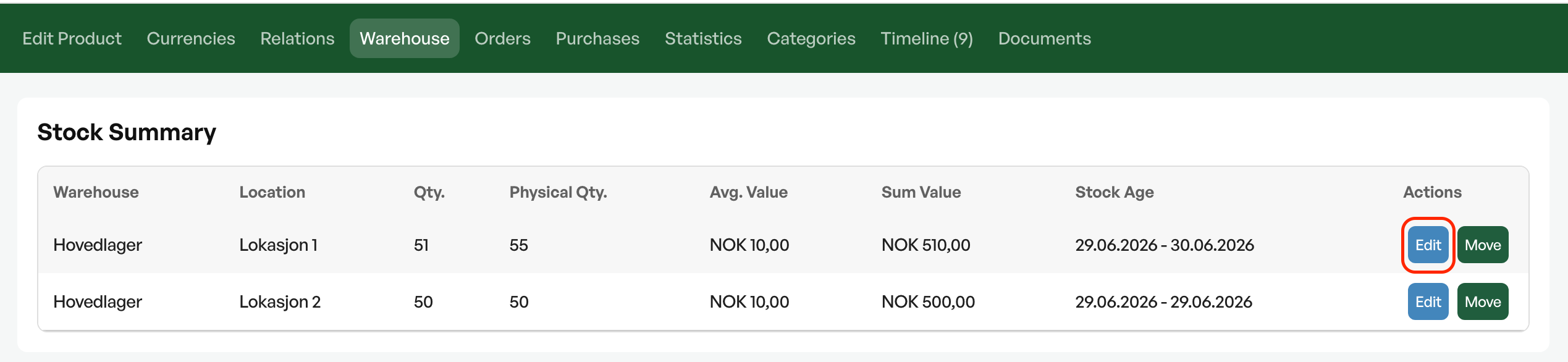
How the cost price in stock is set is described in the user guide;Preparations before a stock count in Telaris, under the section "correcting quantity up from stock balance 0".
Correct procedure:
1. Make sure the purchase price in the catalog is set correctly if there is no historical cost in the system.
2. Set the desired count date
(NB: this becomes the correction date in the system, see the user guideManaging stock counts in Telarisand the section "correction date" for further information here)
3. Enter the correct stock quantity.
4. Enter the desired change note and click save.
The same procedure can be used to adjust the stock quantity down if the quantity and stock cost have become wrong.
An example here could be that the purchase price in the catalog for an item that was counted up on a given date was too high.
Correct procedure then:
1. If necessary, adjust the purchase price in the catalog back to the purchase price that applied when you counted the stock up.
2. Count the product down to the correct quantity on the same date you counted it up.
3. Set the purchase price back to the correct cost in the catalog (that is, the cost you want to include in the stock list).
4. Set the desired count date
(NB: this becomes the correction date in the system, see the user guideManaging stock counts in Telarisand the section "correction date" for further information here)
5. Enter the correct stock quantity.
6. Enter the desired change note and click save.
Sales order
The procedure is then to create a sales order with the relevant products (with a minus sign), set a 100% discount, enter a value per order line when you click the "put back to stock" button, and invoice as usual. We recommend invoicing as normal so that the transaction is posted. In this order you can include all products regardless of supplier.
It is not possible to backdate the change via a sales order. This means that the value change is registered on the date you created the sales order.
This is good to be aware of if you carry out an annual count where you have set the correction date back in time and want the reports to reflect the same date. For those who do a rolling count, this will not matter much.

Purchase order
If you have several item lines you want to correct, we recommend that you create purchases via a sales order.
This is because you then easily create one purchase per supplier for all the item lines you have added to the sales order.
This means that if you have 10 item lines spread across 3 unique suppliers, 3 purchases are created.
- Create a sales order in the normal way, where the customer is typically yourselves.
- Add all the relevant item lines, "...with selected, do" and choose "standard purchase".
See the user guidePurchasingfor further information. - Inside the purchase order itself, you must be conscious of
- Supplier PO no.:
Here you can, for example, write "correction", and it will be shown in the "reference" column across all your purchase orders. - List price, discount and purchase price excl. VAT
Here you define the stock value of the item, so make sure the purchase price is correct.
- Supplier PO no.:
- Once you have entered the correct purchase price, you can create a goods receipt. See the user guideGoods receiptfor further information.
- It is very important that you set the desired receipt date before you choose "add to stock". It is this date that controls when the item is added to stock in the system and consequently the reports.
- It is very important that you set the desired receipt date before you choose "add to stock". It is this date that controls when the item is added to stock in the system and consequently the reports.
- Go back to the sales order, select all the order lines, "...with selected, do" and choose "put back to stock".
This must be done to remove the reservation of the relevant item against the sales order.
It is also entirely possible to delete this sales order. It is only intended as an aid to easily create many purchases at once. If the order is deleted, it is not necessary to do point 5 above.
Regardless of whether you choose a sales order or a purchase order, we recommendthat you mark the order clearly with, for example, "CORRECTION VOUCHER: Stock count Store - goods into stock".
A tip can be to create a separate order type for such corrections you make in the system. It helps keep a good overview. User guide:Creating new order types
If you need to paste several order lines into the sales order. User guide:Order lines - Paste from Excel

Was this article helpful?
That’s Great!
Thank you for your feedback
Sorry! We couldn't be helpful
Thank you for your feedback
Feedback sent
We appreciate your effort and will try to fix the article