Export and import
Export and import of the discount matrix for mass creation or mass processing
TABLE OF CONTENTS
Export for mass processing
In the discount matrix overview, two buttons are shown for export and import.
The function behind these buttons is that you get an Excel file of the discount matrix that you can edit and add more discounts to, and then upload the file again.

Download
When exporting the discount matrix, you are sent to a report page for downloads. You download the file by clicking "Download".

Excel file
The Excel file that opens is set up with columns in a specific order. These must not be changed before an import.
From the Excel file you can add more discounts and adjust existing ones.

Import
For import, copy all the lines without headers, paste them, and click 'Import'.
You have an option to create missing product categories automatically on import by ticking a checkbox.
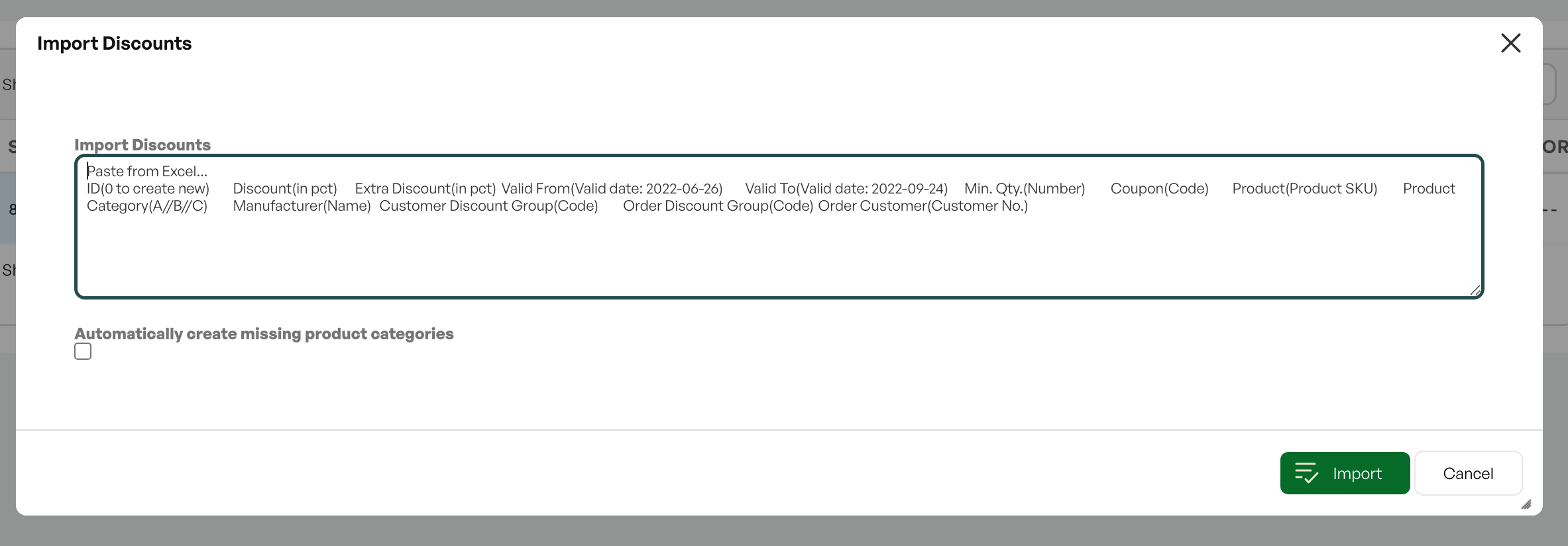
Note: For import, you must copy only the lines in the Excel file and paste them. Do not include the headers.

Was this article helpful?
That’s Great!
Thank you for your feedback
Sorry! We couldn't be helpful
Thank you for your feedback
Feedback sent
We appreciate your effort and will try to fix the article