Linking checklists manually
Checklists can be manually linked to tags (individual, tag or project).
INNHOLDSFORTEGNELSE
Manually linking to a tag (object, individual or project)
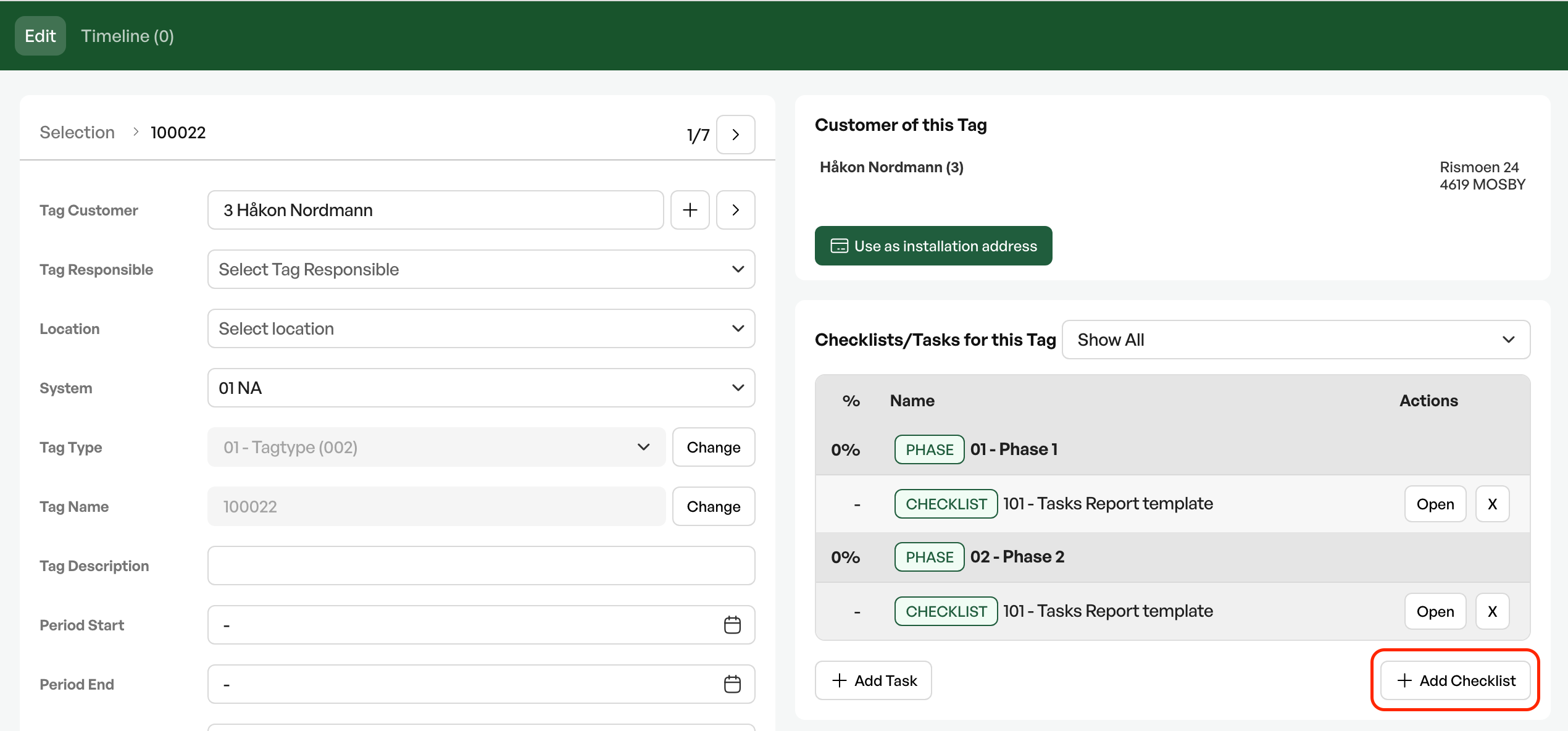
On a tag you find the 'Add checklist' button
The dialog box shows which report template you can link to the tag, and whether you want to link the checklist to an existing order
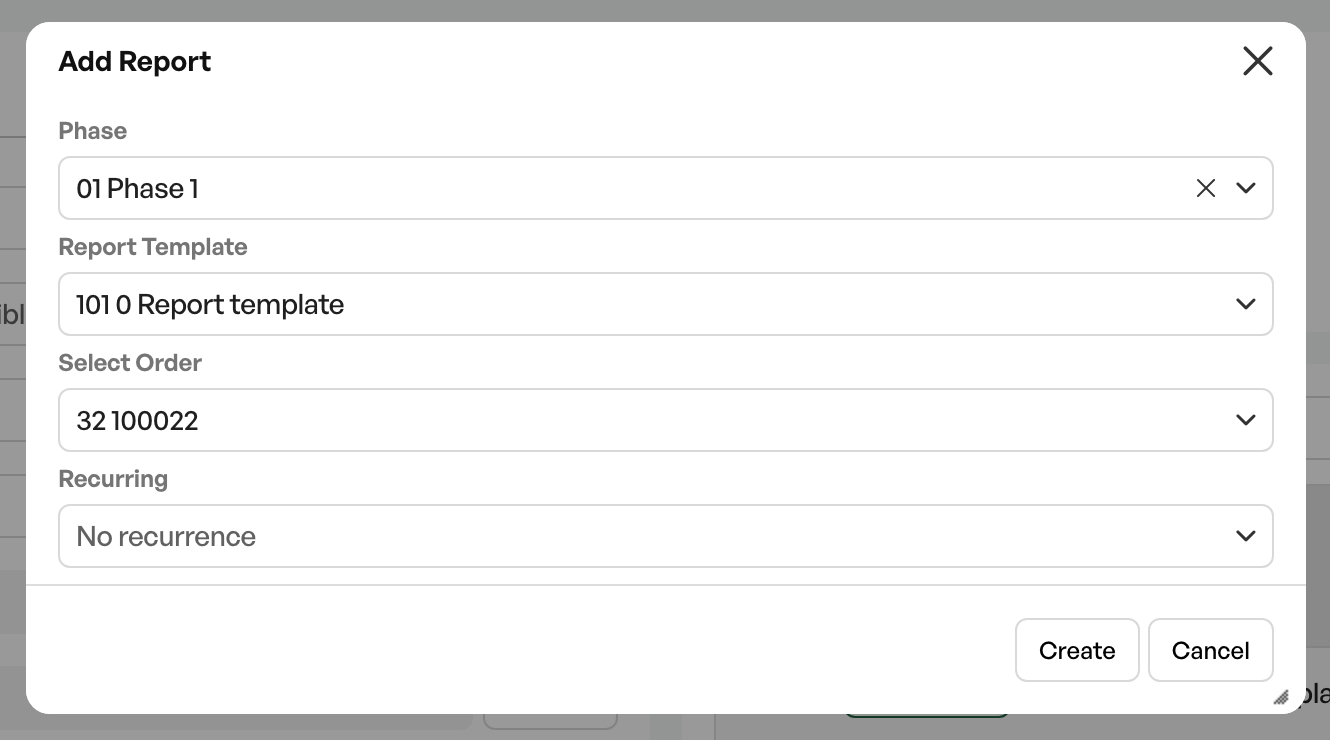
NB: The order must be linked to a tag in order to link a checklist
Checklist to order
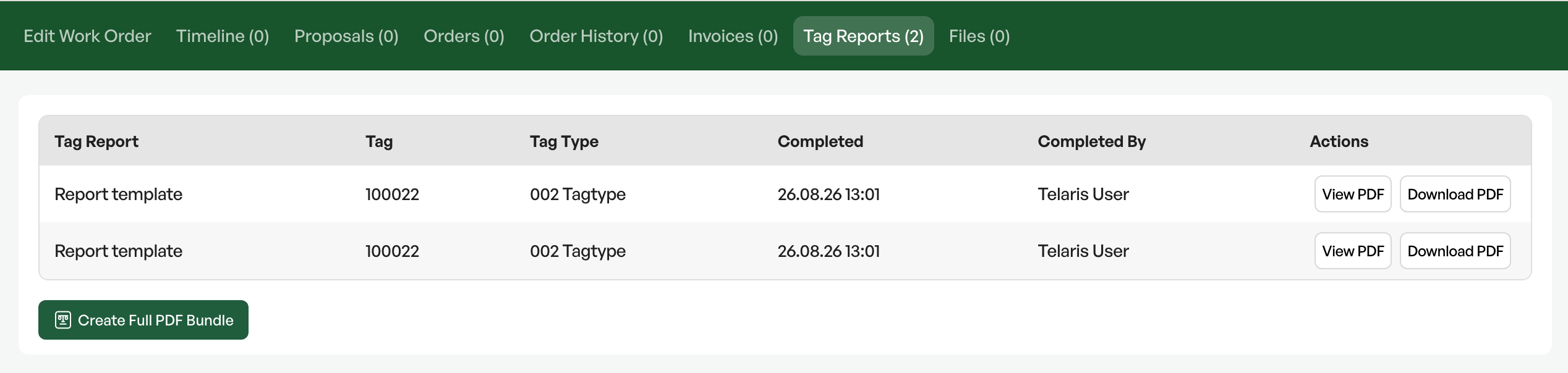
When a checklist linked to a tag and an order is 100% completed, the checklist is added to the 'Checklists' tab on the order.
From the order you can extract a completed checklist and use it in documentation for the customer.
Filling in a checklist
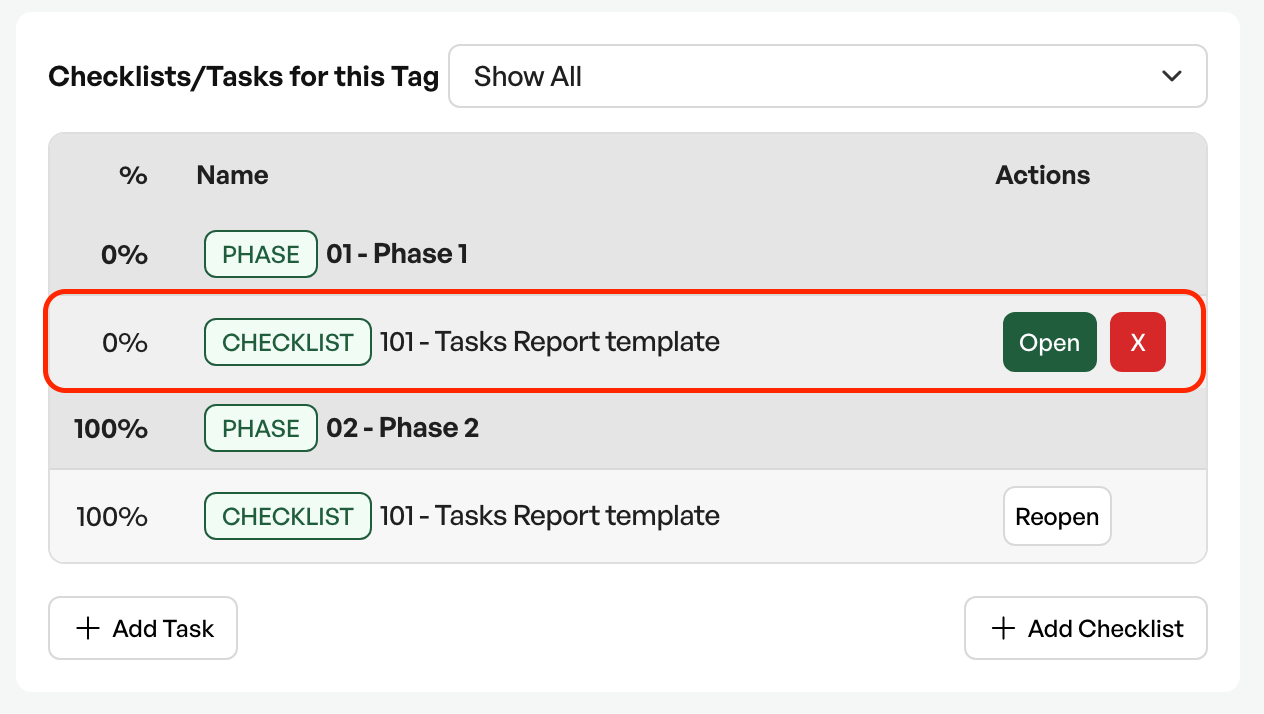
Via a tag (individual, project or tag) you go to the checklist
From the list you fill in the desired content based on how the checklist is set up
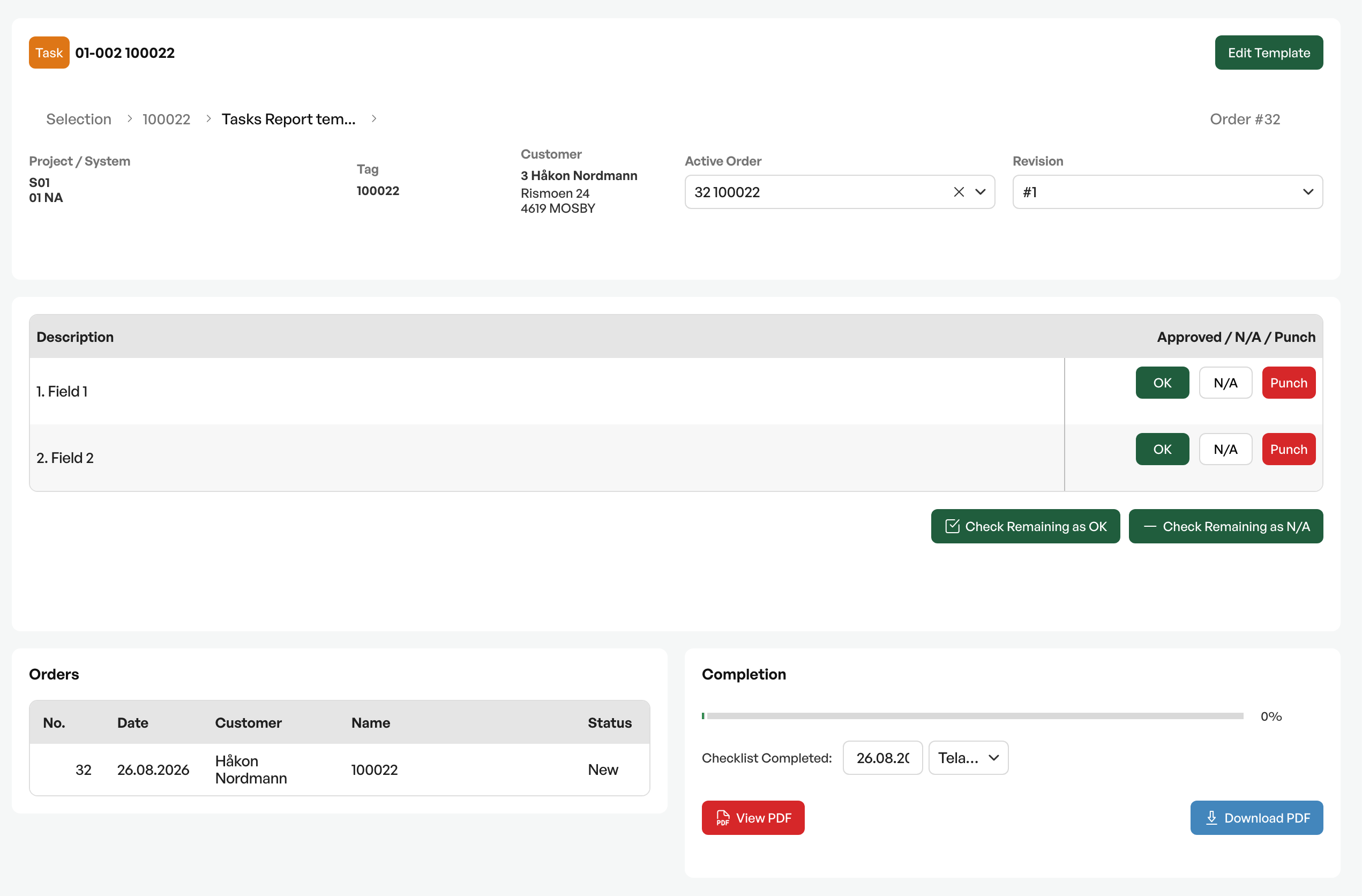
Tag information
At the top of the checklist you see the tag type, tag number, customer, any order and which revision of the checklist you are viewing
The checklist
Ready for filling in the desired fields. If some fields in the checklist are not relevant or are OK, there are the buttons 'Sign out remaining' and 'Set remaining as not relevant (N/A)'
Order
Shows information about the linked order
Completion
Shows the percentage progress of the checklist

Was this article helpful?
That’s Great!
Thank you for your feedback
Sorry! We couldn't be helpful
Thank you for your feedback
Feedback sent
We appreciate your effort and will try to fix the article